How to Change Your Wallpaper on a Mac (and Make It Look Sharp)
Three quick ways to set a desktop wallpaper on macOS, how to rotate a whole folder of wallpapers, use different images on multiple displays, and avoid blurry results.
Changing your Mac’s wallpaper takes about ten seconds. Getting it to look right — sharp, not stretched, and the same across all your screens and desktops — takes a few more settings that are easy to miss. Here’s the full walkthrough.
Before you start: put your wallpapers somewhere permanent
Create a folder for wallpapers, for example Pictures → Wallpapers, and move your files there before you set them. If you set an image straight from Downloads and later clean that folder up, a rotating wallpaper or a freshly set-up Mac won’t find it. A dedicated folder also makes rotation (below) much easier.
Method 1: System Settings (the most control)
- Open the Apple menu → System Settings.
- Click Wallpaper in the sidebar.
- Add your own image with the add button at the top of the pane. Depending on your macOS version it’s labelled Add Photo or Add Folder or Album. You can add a single file or a whole folder.
- Click the image to apply it.
- Pick a scaling option — Fill Screen is almost always the right choice.
This is the only place where you can choose scaling, rotation and per-display settings, so it’s worth knowing even if you usually use the shortcuts below.
Method 2: Right-click in Finder (the fastest)
- Find the image in Finder.
- Right-click (or Control-click) it.
- Choose Set Desktop Picture.
Done. macOS applies it to the current display using your existing scaling setting. If the result looks cropped or stretched, adjust the scaling in System Settings → Wallpaper.
Method 3: From the Photos app
If your wallpaper lives in your Photos library, select it, click the Share button and choose the option to set it as your wallpaper. It’s handy for your own photos. For downloaded wallpaper files, Finder or System Settings is quicker.
Rotate through a whole collection
Wallpapers from the same collection share a palette and lighting, so they work well in rotation: the desktop changes without ever feeling noisy.
- Put the collection in its own folder.
- In System Settings → Wallpaper, add that folder.
- Turn on rotation and choose how often it changes — when you log in, when the Mac wakes, or on a timer from every few seconds to once a day.
- Turn on shuffle if you don’t want them in alphabetical order.
Tip: rename files with a number prefix (01-, 02-…) if you want a specific order without shuffle.
Different wallpapers on multiple displays
Each display has its own wallpaper. With an external monitor connected, System Settings → Wallpaper lets you pick the display you’re editing. Set a 16:9 file (4K or 5K) on the monitor and a native MacBook-size file on the laptop. Both screens will be pixel-sharp, and you avoid the cropping that happens when one image is forced onto two different shapes.
Same wallpaper on every Space
If you use multiple desktops (Spaces) and the wallpaper changes when you swipe between them, look for the Show on all Spaces toggle in the Wallpaper pane. With it on, one choice applies everywhere. With it off, each Space keeps its own wallpaper. This is useful if you like a different mood for work and personal desktops.
Why does my wallpaper look blurry?
Nearly always, one of these:
- The image is smaller than your screen. A 1920 × 1080 file on a 14” MacBook Pro (3024 × 1964 pixels) gets enlarged by more than 1.5×. Use a file at least as large as your display’s native resolution — see our Mac wallpaper resolution guide.
- It’s set to Stretch to Fill Screen. Switch to Fill Screen.
- It was compressed along the way. Images saved from social media or messaging apps are often downscaled and heavily compressed. Download the original file instead.
- Banding in gradients. Smooth skies and soft shadows can show stripes in low-quality JPEGs. A PNG version fixes it.
Keep the desktop readable
A wallpaper is a background, not a poster. If you keep files or widgets on your desktop, pick images with a calm area where those sit. On macOS, desktop icons line up along the right edge by default. We wrote more about this in how to choose a minimalist wallpaper that actually calms your screen.
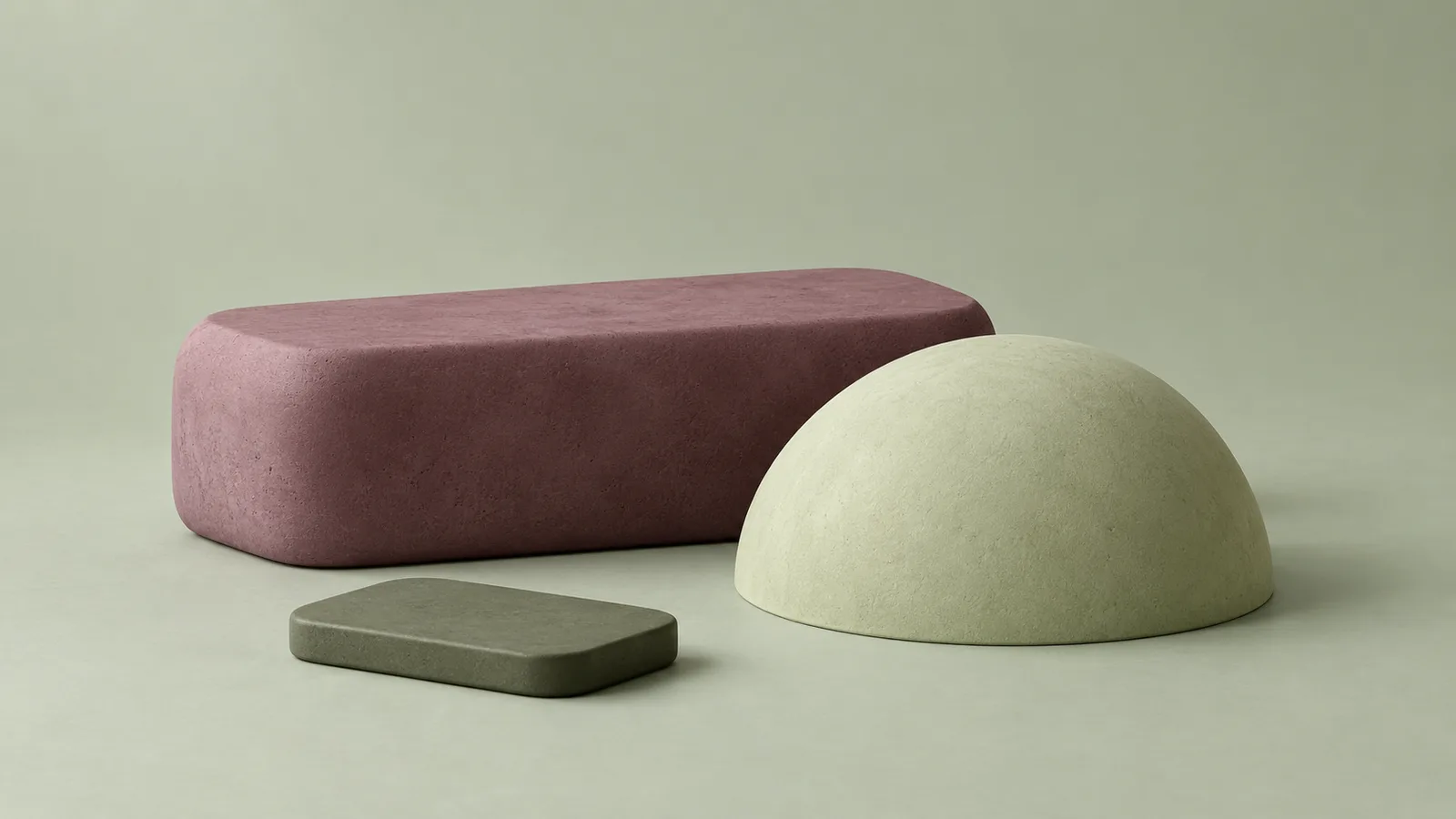
Looking for wallpapers built for exactly this? Quiet Forms comes in native MacBook sizes and 4K, with plenty of quiet space for your icons.
Keep reading
Get the next drop first
One short email when a new collection is released. Early access, occasional free wallpapers, no spam.